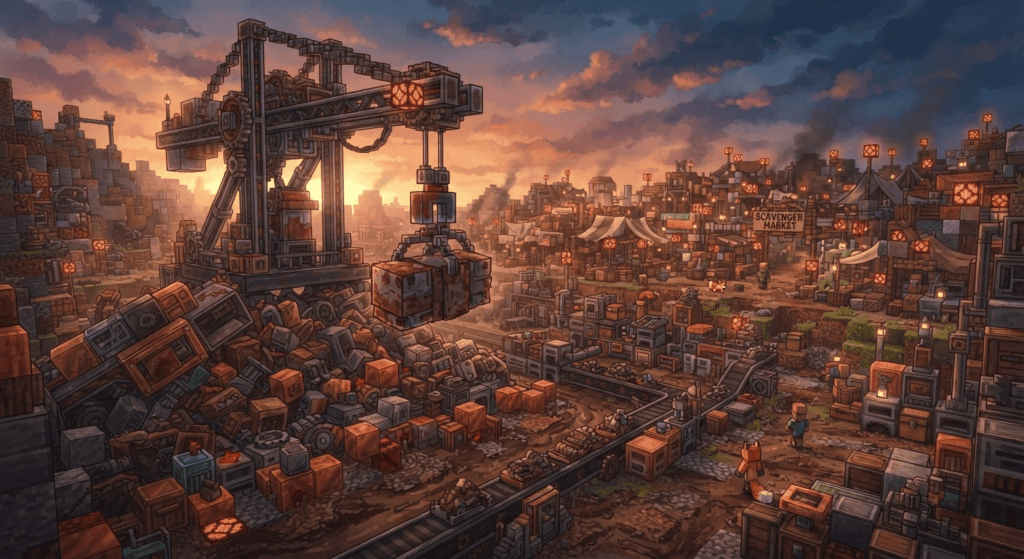
If you’ve ever wanted to turn a barren wasteland into a detailed industrial zone, FoxyNoTail’s latest Minecraft Java Edition build is the blueprint you need. In his video “I built a HUGE SCRAP YARD in Minecraft Create Mod,” he transforms a patch of terrain into a fully functional, lore-rich scrapyard — complete with magnet cranes, scavenger markets, and weathered conveyor systems. We’ll break down the key design tricks and mod features he used, so you can adapt them for your own builds.
What you’ll learn: How to blend custom terrain with the Create mod, design a themed marketplace, and use community-made modpacks for large-scale building projects.
Version, Edition, and Modpack Details
This build was created on the Just Create SMP Season 2 server, which uses the Just Create SMP 2 modpack. Based on the mods described, this is a Minecraft Java Edition world. While the exact game version isn’t pinned down in the source, the modpack’s presence on CurseForge confirms it runs on a recent Java release with the Forge modloader — the most common loader for Create-centric packs.
Before you install anything, grab the modpack from a reputable source:
- Modpack: Just Create SMP 2 on CurseForge (community-made pack, not an official Mojang product)
- Creator’s custom mod: Foxy’s Mod on CurseForge (adds extra decorative blocks used in the build)
- Shader packs: FoxyNoTail enabled shaders for cinematic shots — you’ll need a compatible shader like Complementary or BSL, plus OptiFine ou Iris for Forge. Shaders are performance-heavy; activate them only for screenshots or video if your rig struggles.
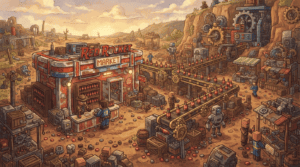
“I tackle the massive wasteland area to finish the dystopian scrapyard. I start by redesigning the scrap pile to replace the bright blocks with worn, dirty textures and integrated vehicles.” — FoxyNoTail
World Seed and Server Context
The Just Create SMP server uses the seed -3306902169669489505 (Java Edition). Keep in mind that terrain generation depends heavily on the specific modpack and version; the same seed in vanilla Minecraft won’t produce the wasteland biome FoxyNoTail built in. If you want to replicate the starting landscape, you’ll need the exact modpack loaded.
Step-by-Step: How the Scrapyard Came Together
1. Redesigning the Scrap Pile with Weathered Textures
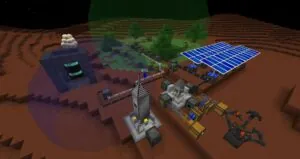
FoxyNoTail scrapped (pun intended) the original bright, clean blocks and replaced them with weathered iron, copycat slabs, and mud. Copycat blocks — a staple in many Create add-ons — let you mimic the texture of any adjacent material, which is perfect for blending man-made machinery into natural terrain. He also integrated vehicle wreckage directly into the pile, making the heap feel organic rather than a simple stack of random blocks.
2. Building the Magnet Crane and Conveyor System
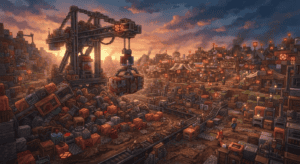
No scrapyard is complete without a way to move heavy debris. The magnet crane is the centerpiece, looming over the pile. Underneath it, FoxyNoTail laid out detailed Create mod conveyor belts that look functional even if they’re mostly decorative. He used the same weathered palette — iron and mud — to make the conveyors feel like they’ve been grinding away for years.
“I also spend time adding detailed conveyor systems under the magnet crane, incorporating weathered iron, copycat slabs, and mud to blend the terrain.” — FoxyNoTail
3. Constructing the Scavenger Market
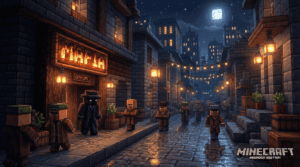
A large timelapse sequence captures the rise of the Scavenger Market, a ramshackle trading post where “slum workers” (in the server’s lore) sell parts scavenged from the piles. This area brings the dystopian theme to life — think tight alleyways, makeshift stalls, and dim lighting. If you’re recreating a similar market in your own world, mix and match Create’s decorative blocks with crate-like storage and flickering redstone lamps for a lived-in, run-down atmosphere.
“A large timelapse then covers the construction of the Scavenger Market, a place for the slum workers to sell scavenged parts.” — FoxyNoTail
Community Builds: Rainbow Park and Eggs’ Dungeon
The episode isn’t just about the scrapyard. FoxyNoTail tours two builds by other server members:
- Azu’s Rainbow Park: An abandoned amusement park that’s canonically deadly — fitting into the evil G-Corp server lore. It’s a masterclass in contrasting cheerful colors with dark, ominous details.
- Eggs’ Dungeon: Another community creation featured during the cinematic shader tour. Details are scarce in the source, but it reinforces the server’s collaborative, storytelling-driven style.
Shaders and Cinematic Presentation
FoxyNoTail switched on shaders for the final tour. If you want to capture your own builds this way, remember: shaders aren’t mods in the traditional sense — they’re visual packs that run on top of OptiFine or Iris. Java Edition only. Install OptiFine for the correct Minecraft version (check the Just Create SMP 2 profile to match), drop your chosen shaderpack into the shaderpacks folder, and you’re set. Bedrock/Pocket Edition players have access to RTX-enabled worlds on supported hardware, but that’s a different pipeline entirely.
What’s Next? Adapting These Ideas to Your Own World
FoxyNoTail’s scrapyard proves that the Create mod isn’t just about kinetic automation — it’s a powerful artistic toolkit. The key takeaways are:
- Blend terrain with copycat blocks to make machines feel embedded in the landscape.
- Use a restricted, weathered palette (iron, mud, dark metals) for industrial builds.
- Weave storytelling into every structure — the Scavenger Market wouldn’t be half as compelling without the slum-worker lore behind it.
Ready to start your own industrial project? Grab the Just Create SMP 2 modpack for Java Edition on CurseForge and load up the seed -3306902169669489505 if you want to walk the same wasteland FoxyNoTail did. For more build inspiration with the Create mod, check out our Mods section and keep an eye on what the SMP community cooks up next.